Use Stream Deck or keyboard shortcuts to trigger different export setups
with dedicated buttons.
Just enter the final name, optionally choose a different folder, and you’re done.
Ben’s Toolbox for Stream Deck provides instant access
and one-click loading for your plugins, patches, and performances.
Create presets for mixes, stems, and exports, recall everything with a single click,
and let Logic Pro handle the entire bounce process automatically — including
track renaming, fade-outs at file ends, and more. Especially for production music
with recurring export workflows, the Bouncer Tool becomes your best friend — as
long as your arrangement stays clean.
Just give it a try.


Ben’s Toolbox is a powerful companion designed to supercharge your workflow in Logic Pro 11.1.2 on macOS 14.6 and later.
I’m Bendix Amonat, and I’ve been working with Logic Pro for over 20 years.
From the very beginning, I fell in love with this incredible application
— but —
I soon realized that some essential workflow shortcuts were missing.
That’s why, in 2025, I began developing Ben’s Toolbox.
I’m confident that Ben’s Toolbox will help you save time, stay focused, and get more out of every session.
Let’s dive in and see what’s inside!
Whats inside?
Ben’s Toolbox is built to save you serious time.
At its core, it combines powerful automation scripts with deep Stream Deck integration, turning complex Logic Pro workflows into fast, reliable one-button actions. Repetitive tasks that normally cost minutes — or break your focus — are handled in seconds. The result: less clicking, fewer mistakes, more music.
The centerpiece is the BOUNCER TOOL — a massive time-saver for producers.
Exporting stems, versions, or client deliverables is usually tedious: selecting tracks, soloing, renaming, bouncing, repeating. The Bouncer Tool automates the entire process. Create smart presets, trigger exports directly from your Stream Deck, and generate perfectly named files consistently. Whether it’s dry vocals, full mixes, or large batch exports, what used to take ages is now done in a fraction of the time.
Ben’s Toolbox doesn’t just speed things up — it changes how you work.
Scripts overview
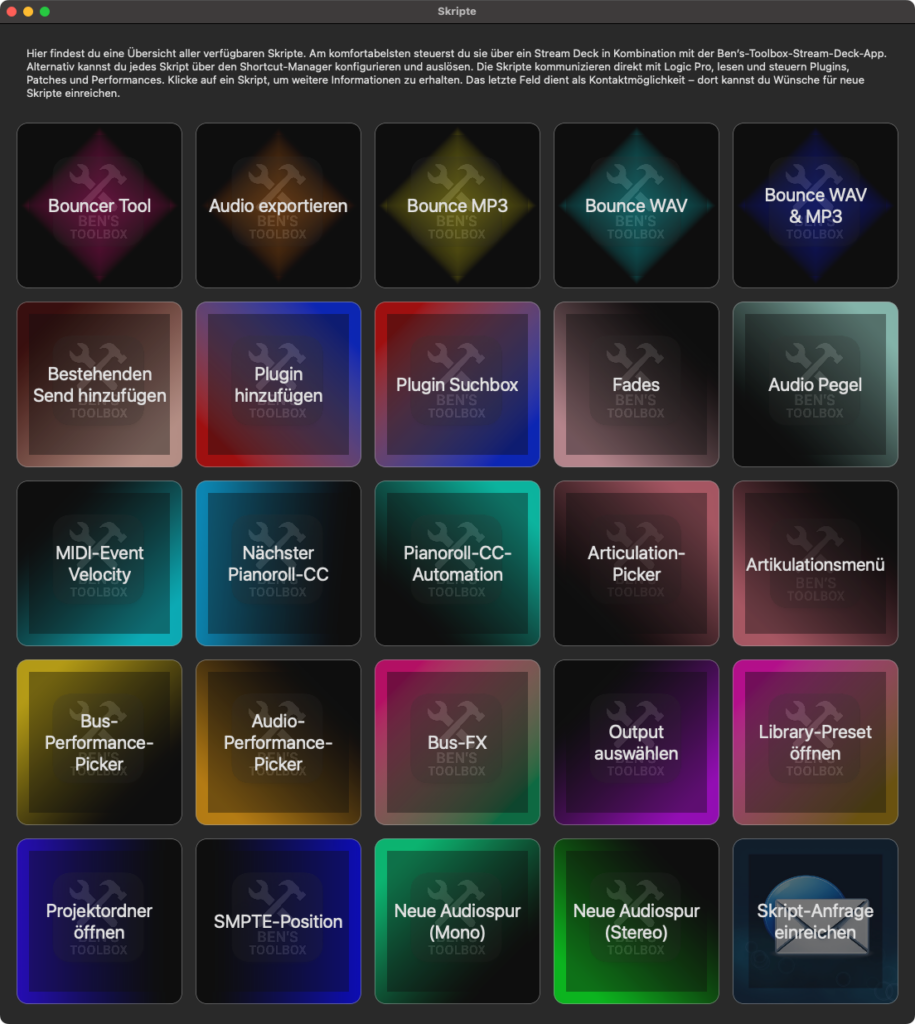
Ben’s Toolbox scripts are built for one thing: eliminating slow, repetitive Logic Pro work.
The fastest way to use them is a Stream Deck with the Ben’s Toolbox Stream Deck app — one tap, instant result.
If you prefer keyboard workflows, every script can also be mapped and triggered via the Shortcut Manager.
Behind the scenes, the scripts communicate directly with Logic Pro to read and control plugins, presets, patches,
performances, and key editing features. That means fewer clicks, fewer mistakes, and a workflow that stays focused.
Click any script to see details — and if you’re missing something, the last tile lets you request new scripts.
- The Bouncer Tool is the fastest way to export mixes, stems, versions, and client-ready deliverables.
- Export Audio exports selected channels using predefined settings. Extremely fast and reliable.
- With Bounce Wav you can export your WAV, AIFF or CAF with your settings with one click!
- With Bounce MP3 you can export MP3 files using your predefined settings with a single click.
- Bounce WAV & MP3 exports WAV and MP3 at the same time — one click, two deliverables.
- Add Existing Send applies an existing bus send to the current track with one click.
- Add Plugin adds a predefined plugin to the next free insert slot instantly.
- Add Plugin via Search searches and loads any installed plugin via keyboard input.
- Fade And Gain lets you easily set gain, fade in/speed up, fade out/slow down and fade type and time.
- Midi Event Velocity sets the velocity of the selected midi event.
- Next Pianoroll CC leads you to the next CC automation, if available.
- Pianoroll CC Automation allows you, to select a midi cc parameter directly with one click
- Articulatio Picker sets an articulation for a midi event by name.
- Articulation Menu opens the articulation picker menu so you can type in your desired articulation.
- Bus Performance Picker sets your chosen performance for your bus track.
- Audio Performance Picker sets a predefined audio performance for your selected channel.
- Bus FX adds the next free bus channel with a predefined plugin, output, name and intensity.
- Select Output lets you change the output of the active channel with just one click.
- Open Library Presets reads you library presets und lets you open a preset with one click.
- Open Project Folder opens the current session location inside the finder.
- SMPTE Position sets the time to zero at your actual playhead.
- New Audio Track (Mono) adds a new mono audio track with defined input and name.
- New Audio Track (Stereo) adds a new stereo audio track with defined input and name.
- Submit Script Request lets you get in touch with us and ask for your desired scripts.
Bouncer Tool
What the Bouncer Tool can do
The Bouncer Tool automates complex bounce and export workflows in Logic Pro with speed, consistency, and full control. Create and manage multiple bounce rounds to export different versions of your project with just a few clicks.
Define the export folder and project name, using the Logic project name by default or overriding it manually.
Use a powerful Dictionary system to automatically rename bounced and exported channels — for example converting short or inconsistent names like “e-guit” into “Electric Guitar”. Combine this with Name Presets to enforce consistent formatting: capitalize names, add prefixes or suffixes, define separators, or append composer and project information automatically.
Create channel selection presets to include or exclude tracks based on their names, channel type, matching rules (exact or contains), or hierarchy level. Mute channels per bounce round by name, and create as many bounce rounds as needed — fully preset-based or manually customized.
For each bounce round, decide whether tracks are bounced together or individually, online or offline, and whether the export itself runs online or offline. Define the output format and audio settings once and reuse them reliably. Before executing a bounce, the Bouncer Tool automatically verifies critical conditions such as low-latency mode, metronome state, master plugins, and cycle area, ensuring clean and predictable results every time.
Finally, apply automatic fades to bounce rounds based on threshold, hold time, and fade duration — no manual cleanup required.
Shortcut Manager
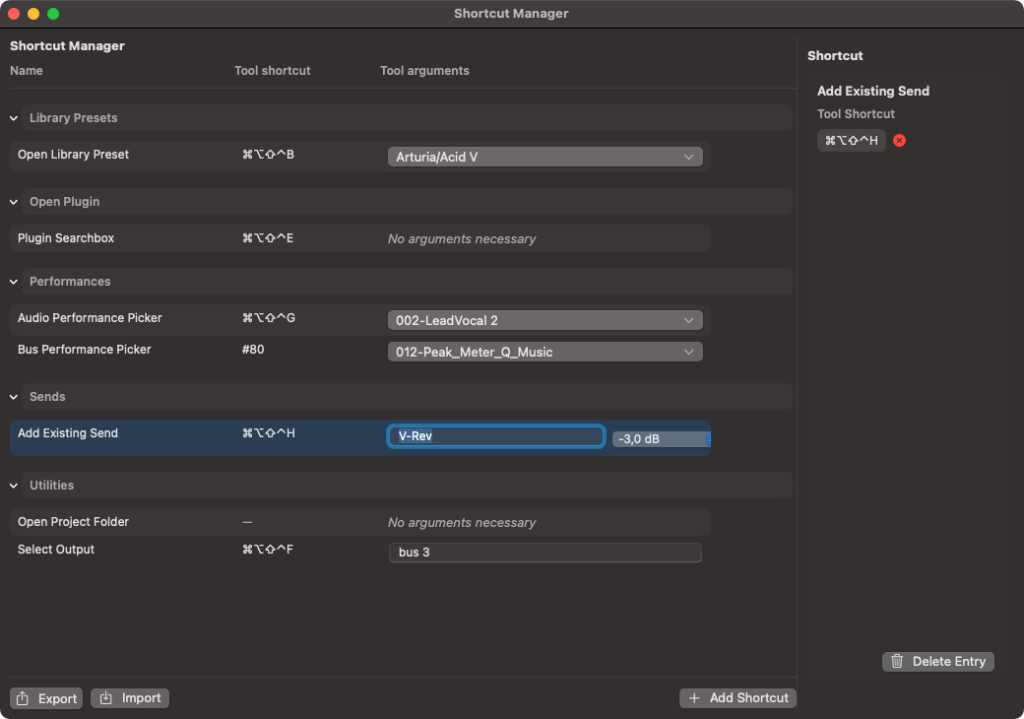
All functions are controlled directly through the built-in Shortcut Manager. You can assign detailed parameters to each action and trigger them with a simple key command — no scripting or code required. Each shortcut can be configured individually, allowing you to create highly customized workflows for bouncing, fades, sends, presets, and much more.
In combination with a Stream Deck, you get fast and reliable access to your most important tools. The Stream Deck integration focuses on execution speed and precision rather than complex feedback mechanisms. The result is a streamlined workflow that removes repetitive manual steps and keeps you focused on making music.
How does this work?
Ben’s Toolbox uses its own virtual MIDI device to communicate directly with Logic Pro. This virtual controller, called Ben’s Toolbox, triggers Logic shortcuts via MIDI — the same way MIDI keyboards or control surfaces do. On first launch, Ben’s Toolbox provides a guided controller setup assistant that helps you install and configure the virtual MIDI device automatically. In most cases, this setup is completed in seconds. If the automatic setup is not available or does not work in your system, the controller can be added manually in Logic’s Control Surface settings.The step-by-step instructions for manual setup are shown right here — in the slideshow below.
If you have any questions about setup, usage, or workflow integration, feel free to get in touch.
You’ll find the contact email in the app’s About section — we’re happy to help.


Become a BETA tester
We are currently in our beta testing phase and are looking for Logic Pro users interested in trying out our application. If you use Logic Pro in English or German and would like to test Ben’s Toolbox, simply download the latest version and give it a try. If you enjoy using it, we can extend your trial period—just send us an email using the address listed in the application’s “About” section.
CONTACT
If you have any questions, feel free to contact us using the contact formula.
We will reply as soon as possible.
F.A.Q.
Do I need a Stream Deck to use Ben’s Toolbox?
No, a Stream Deck is not required. However, using a Stream Deck is highly recommended, as it provides the fastest and most convenient way to trigger scripts and workflows directly from hardware buttons. If you don’t use a Stream Deck, you can still run all features of Ben’s Toolbox via the built-in Shortcut Manager. It allows you to assign keyboard shortcuts to any script and trigger them without additional hardware.
How can I test scripts without a Stream Deck?
All scripts are listed directly in the Scripts menu and can be tested immediately — as long as the Ben’s Toolbox controller has been added in Logic Pro. If you don’t use a Stream Deck, you can additionally assign your own keyboard shortcuts via the Shortcut Manager to trigger any script quickly, with no extra hardware required.
How can I become a beta tester?
Simply download and start the app, enter your email address, and you’re ready to go. We’re happy to receive your feedback.
How do I provide feedback during beta testing?
We highly appreciate your feedback during the beta phase. Please use the email link in the app’s About menu to contact us directly. Let us know what works well, what feels unclear, or where you encounter issues — your feedback helps us continuously improve Ben’s Toolbox.
Does Ben’s Toolbox connect to a server?
Yes. Ben’s Toolbox connects to a server to validate licenses and trial status, and to check for available updates. An internet connection is required during installation and activation. After that, no continuous internet connection is required for normal use.
What permissions are needed to run Ben’s Toolbox?
Ben’s Toolbox requires Accessibility permissions to control Logic Pro. These permissions are used to identify and interact with windows, buttons, and UI elements inside Logic Pro. The application does not read, store, or collect any personal data. The permissions are strictly required to run scripts reliably and automate actions within Logic Pro.
What system requirements are needed to use Ben’s Toolbox?
Ben’s Toolbox requires Logic Pro 11.1.2 or later and macOS Sonoma or newer. An internet connection is needed for license activation and update checks. Since Ben’s Toolbox works directly with Logic Pro, your Mac should be powerful enough to run Logic smoothly under normal working conditions.